


‘ping’ command is used to troubleshoot and diagnose network connectivity issues. It is used to check whether the host is reachable. It’s available on all the Operating Systems. ‘ping’ reports the round-trip time for the messages sent from the source to the destination.
How does ‘ping’ work?


Fig: Ping Packets
Ping command sends a 32 bytes ICMP (Internet Control Message Protocol) packet from “Host A” (Source) to “Host B” (Destination) and waits for the “Host B” to be responded with a 32 bytes packet to “Host A”. If connectivity is successful then overall round trip time is printed, if not reason for failure such as packet loss, timeout, connectivity errors,… are printed.
How to execute the ‘ping’ command ?
Here is how you can invoke this command:
ping [IP/domain]Example:
ping gceasy.comWhen the above command is issued, the following message will be printed in the console:
Pinging gceasy.com [195.201.17.137] with 32 bytes of data:
Reply from 195.201.17.137: bytes=32 time=217ms TTL=45
Reply from 195.201.17.137: bytes=32 time=185ms TTL=45
Reply from 195.201.17.137: bytes=32 time=188ms TTL=45
Reply from 195.201.17.137: bytes=32 time=196ms TTL=45

Ping statistics for 195.201.17.137:
    Packets: Sent = 4, Received = 4, Lost = 0 (0% loss),
Approximate round trip times in milli-seconds:
    Minimum = 185ms, Maximum = 217ms, Average = 196ms
Where,
- time: It is a round-trip time. It is a time taken by the packet to reach from Source to Destination and reported back to the source
- TTL(Time To Live): is the amount of time or “hops” and it can vary from 0 to 255 depending upon the Host Operating System. When a packet is sent across the internet, there is a chance that packet passes from the router and the packets will be sent until the user interrupts this command. Because of this packets are designed with an expiration called a time-to-live.
- Ping statistics:
- Packets Sent: Number of times packet has been sent from the host to destination.
- Packets Received: Number of times packet has been received from the destination to the host.
- Packets Lost: Number of packets failed to reach the destination.
- Approximate round trip times:
- Minimum : It is a minimum time to get a response in milliseconds
- Average : It is a average time to get response in milliseconds
- Maximum : It is a maximum time to get a response in milliseconds
What is the ping’s default TTL?
Ping command’s TTL (Time To Live) Values differ from Operating system to Operating system. Following table summarizes the ping command’s default TTL value for the popular Operating systems:
| Linux/Unix | 64 |
| Windows | 128 |
| Solaris/AIX | 254 |
Ping Errors:
- Request Timed Out: If there is no response from the host due to heavy network traffic OR if there is a failure of ARP request packet filtering OR if there is an error in the router, then the ping request will timeout.
Example:
ping gceasy.io

Pinging gceasy.io [52.52.12.54] with 32 bytes of data:
Request timed out.
Request timed out.
Request timed out.
Request timed out.

Ping statistics for 52.52.12.54:
    Packets: Sent = 4, Received = 0, Lost = 4 (100% loss)
SOLUTION: Increase the wait time using the ping -w switch.
- Ping Request Could Not Find Host: When the IP address can not be determined from the hostname passed to the ping command, you will experience this error.
Example:
ping test123blah.com

Ping request could not find host test123blah.com. Please check the name and try again.
SOLUTION: Verify the hostname that is passed to the ping command. Verify whether DNS servers are available/reachable from your host.
- Destination Host Unreachable: When the host you are trying to reach is down or unavailable on the network, then ‘Destination Host Unreachable’ error will be returned.
Example:
ping 192.168.0.0

Pinging 192.168.0.0 with 32 bytes of data:
Reply from 192.168.0.102: Destination host unreachable.
Reply from 192.168.0.102: Destination host unreachable.
Reply from 192.168.0.102: Destination host unreachable.
Reply from 192.168.0.102: Destination host unreachable.

Ping statistics for 192.168.0.0:
    Packets: Sent = 4, Received = 4, Lost = 0 (0% loss)
SOLUTION: Validate whether the destination host is up and running. Modify the local route table or notify the router administrator.
- TTL expired in transit: When there is a heavy loop in routing the packet to the destination, TTL will expire. It will result in a ‘TTL expired in transit’ error.
SOLUTION: Identify the IP addresses that are repeating and causing the loop. On Linux, issue “route -n” command as a root user to see the current routing table. On the windows, issue the command “route print”.
- Ping:transmit failed. General failure : When a physical problem exists on the device’s network card or wireless adapter, it will result in ‘Ping:transmit failed. General failure’ error.
Example:
ping 2DAB:FFFF:0000:3EAE:01AA:00FF:DD72:2C4A

Pinging 2dab:ffff:0:3eae:1aa:ff:dd72:2c4a with 32 bytes of data:
PING: transmit failed. General failure.
PING: transmit failed. General failure.
PING: transmit failed. General failure.
PING: transmit failed. General failure.

Ping statistics for 2dab:ffff:0:3eae:1aa:ff:dd72:2c4a:
    Packets: Sent = 4, Received = 0, Lost = 4 (100% loss)
SOLUTION: Make sure there are no issues with the network card. Make sure the latest version of the network driver is installed on the device. Check whether the proper IP address is assigned to the device.
Commonly used Ping Commands
You can use other options along with the ‘ping’ command to get to the information that you are looking for.
To send more Request:
Say if you want to send ‘5’ echo request, then you can issue the following command:
ping -n 5 gceasy.comWhen the above command is issued, the following message will be printed in the console:
Pinging gceasy.com [195.201.17.137] with 32 bytes of data:
Reply from 195.201.17.137: bytes=32 time=168ms TTL=45
Reply from 195.201.17.137: bytes=32 time=165ms TTL=45
Reply from 195.201.17.137: bytes=32 time=170ms TTL=45
Reply from 195.201.17.137: bytes=32 time=170ms TTL=45
Reply from 195.201.17.137: bytes=32 time=183ms TTL=45

Ping statistics for 195.201.17.137:
    Packets: Sent = 5, Received = 5, Lost = 0 (0% loss),
Approximate round trip times in milli-seconds:
    Minimum = 165ms, Maximum = 183ms, Average = 171ms
To Ping the specified host until stopped:
Say if you want to send request to the specified host until it is manually stopped, then you can issue the following command:
ping -t gceasy.comAlso Read – How to kill processes in Unix/Linux effectively! Master commands like kill and pkill to terminate tasks and manage your system efficiently.
Tools for Ping
Performance root cause analysis tools like yCrash, captures application level artifacts (like thread dump, heap dump, Garbage Collection log) and system level artifacts (like netstat, vmstat, iostat, top, top -H, dmesg,…). Along with it, the tool also captures the ping command output. Tool analyzes all these artifacts and generates an unified root cause analysis report instantly. If the tool spots any errors in the ping command output, it will raise an alert in the report.

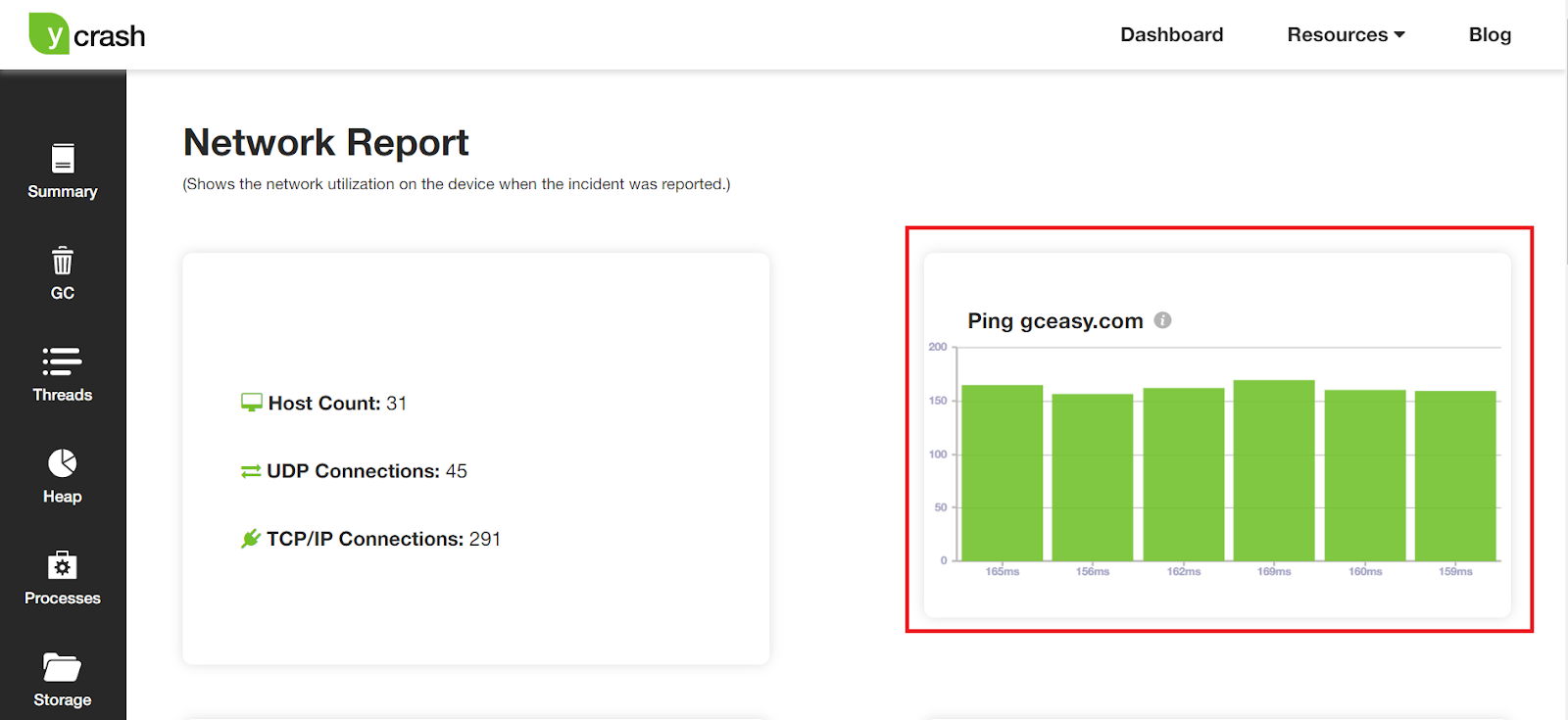
Fig: ping output captured and reported in yCrash tool
‘ping’ command options
If you want to know all the options passed to the ‘ping’ command, please refer here.